How to Use Dual Accounts on VPhoneGaga App (Complete Guide)
Running two accounts of the same app on one phone sounds simple until you actually try it. Logging in and out, notifications firing at the wrong time, data getting mixed up between your personal and work life.
VPhoneGaga is an Android app that solves this by creating a full virtual Android environment inside your phone. It’s not a simple app cloner it’s a separate, isolated system that runs apps as if they were on a completely different device.
This guide walks you through the exact setup process, real-world use cases, and everything most blogs skip over.
What Are Dual Accounts And Why It Matters
Dual accounts means running two completely independent instances of the same app on one device. Not switching between profiles. Not cloning an icon. Two separate logins, two separate data environments, running at the same time.
With VPhoneGaga, you get:
- Separate logins for personal and business accounts
- Zero data overlap between the two environments
- Independent notifications without interference
- True parallel usage no toggling, no logging out
Think of it as carrying two phones in one device except you only need to charge one.
How to Set Up Dual Accounts on VPhoneGaga: Step-by-Step
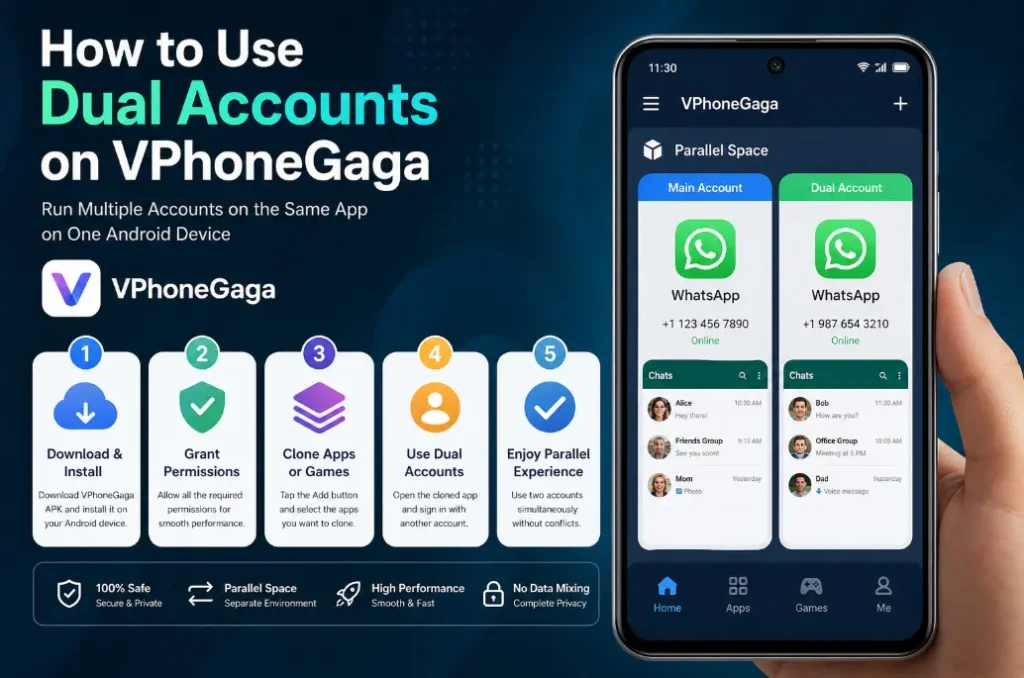
Step 1: Download and Install VPhoneGaga
Since this is distributed as an APK, you’ll install it manually. Here’s how to do it safely:
- Visit the official website at vphonegagaapk.com
- Download the latest APK file. Click Here.
- Open your phone’s Settings and navigate to Security or Privacy
- Enable “Install from Unknown Sources” (or “Allow from this source” on newer Android versions)
- Open your File Manager and locate the downloaded APK
- Tap it to install, then launch the app
Important: Only download from the official site. Sideloading APKs from random sources carries security risks. Verify the source before installing.
Step 2: Grant the Required Permissions
On first launch, VPhoneGaga will request several permissions. Do not skip or deny these they are essential for the virtual environment to function correctly.
Allow the following when prompted:
- Storage access
- App installation permissions
- Any system-level prompts the app requires
If apps inside the virtual space behave oddly later, denied permissions are usually the culprit. Go back and re-enable them from Settings > Apps > VPhoneGaga.
Step 3: Initialize Your Virtual Android Space
After permissions are set, VPhoneGaga initializes a virtual Android system. This is the core of how it works a fully isolated environment that behaves like a separate device.
First-time setup may take 30–60 seconds. Let it complete fully before proceeding. Subsequent launches will be significantly faster.
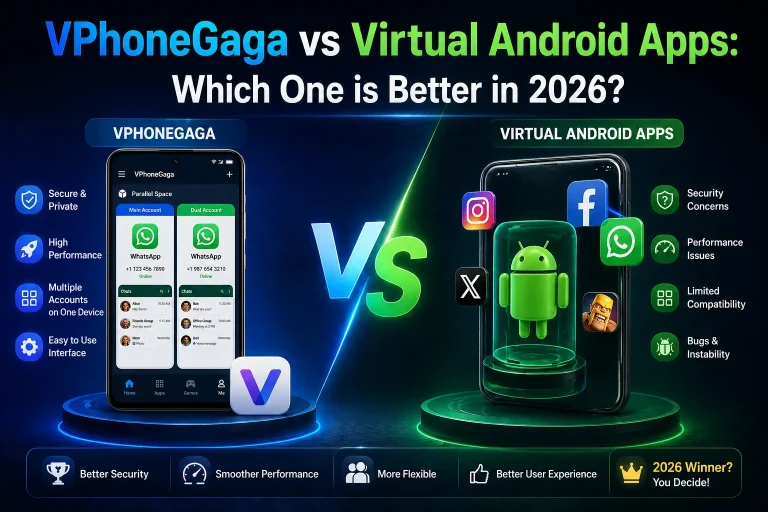
See Also: VPhoneGaga vs Virtual Android Apps – Which One is Better in 2026?
Step 4: Add the App You Want to Duplicate
Now you’re ready to clone an app:
- Inside VPhoneGaga, tap the “Add App” or “+” button
- A list of apps installed on your main phone will appear
- Select the app you want to run as a second account
- Tap confirm
The app will appear inside your virtual space within seconds. This is a fully independent copy not a linked shortcut with its own storage, cache, and login state.
Step 5: Log In With Your Second Account
Open the cloned app inside VPhoneGaga and sign in with a different account. This login is completely separate from the one on your main phone no interference, no conflict.
Both versions of the app now run independently on the same device.
Real-World Use Cases
VPhoneGaga isn’t just a tech novelty. Here are the situations where it genuinely saves time:
Social Media Management Run your personal Instagram or Twitter alongside your brand account simultaneously. No more logging out mid-reply. Content creators and social media managers will get the most value here.
Mobile Gaming Maintain multiple game accounts for progression farming, guild testing, or keeping a fresh account alongside your main. No factory resets, no data loss.
Messaging Apps (Work vs. Personal) Keep WhatsApp or Telegram completely separate for work and personal use. Different notification settings, different contacts visible in each space.
App Development and Testing Developers can test different user states, account tiers, or regional settings without maintaining multiple physical devices or resetting their main environment.
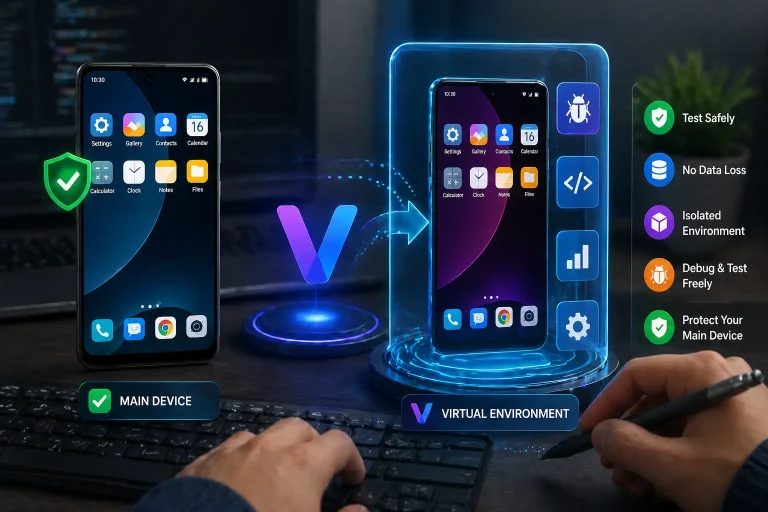
See Also: How VPhoneGaga Helps Developers Test Apps Without Risking Their Main Device
What You Should Know Before You Start
Most guides skip these. Don’t find out the hard way:
- Performance depends on RAM 4GB or more is recommended for smooth usage
- Low-end devices may lag when running heavy apps inside the virtual space
- Battery drain increases slightly due to running a second virtual environment
- Some apps may need notifications manually enabled inside VPhoneGaga’s settings
- Banking and payment apps may detect virtualization and refuse to run this is a known limitation of all virtual space tools, not specific to VPhoneGaga
VPhoneGaga vs. Basic App Cloners: What’s the Difference?
Most “dual app” tools work by duplicating the app’s interface layer. They look like two separate apps but often share underlying system resources, which causes login conflicts and data leaks between accounts.
VPhoneGaga takes a fundamentally different approach:
- Runs a complete virtual Android OS not just a sandboxed copy
- Full isolation between your main phone and the virtual environment
- Fewer login conflicts, especially with apps that enforce single-device policies
- More stable performance for games and resource-heavy applications
The trade-off is slightly higher resource usage compared to basic cloners. But if reliability and true separation matter to you, that’s the right trade.
Frequently Asked Questions
Is VPhoneGaga safe to use?
Yes, when downloaded from the official website. Like any sideloaded APK, the key is sourcing it correctly. Avoid third-party APK aggregator sites.
Does VPhoneGaga work on iOS (iPhone)?
No. VPhoneGaga is an Android-only application. iOS does not support sideloading or virtual environments of this type without jailbreaking.
Can I get banned from apps for using dual accounts?
Some apps, particularly competitive games, prohibit multiple accounts in their terms of service. Whether they detect virtualization depends on the app. Check the specific app’s TOS before proceeding.
How many accounts can I run at once?
VPhoneGaga supports multiple apps running in the virtual space simultaneously. Practical limits depend on your device’s RAM. On 4GB+ devices, most users run 3–5 apps without issue.
Will my data be safe?
The virtual environment is isolated from your main phone storage. Data within the virtual space does not mix with your primary apps. However, always back up important data before experimenting with any virtualization tool.
Final Thoughts
If you only need to switch between accounts occasionally, a basic cloner will do the job. But if you want genuine isolation separate notifications, no data bleed, stable performance for games or heavy apps VPhoneGaga is the more complete solution.